
Buyer's Guide
Introduction to Multimedia Projectors
The LCD projector you choose for your make-or-break presentation is critical. You can spend hours memorizing figures, writing witty anecdotes on note cards, and ironing that power suit. But even though your content may be "knock-'em dead" good, the effectiveness of your presentation will still be largely dependent on whether or not the audience can see it clearly.
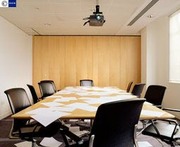
As a result, a high quality multimedia projector can make the difference between a presentation that informs and persuades… or falls flat.
The multimedia projector industry has exploded as laptops, iPads, tablet PCs, and projectors have replaced slide trays and transparencies in conference rooms everywhere. Further in line with this trend, the size and price of projectors have shrunk accordingly as manufacturers scramble to cater to businesses that want projection devices that are as small and affordable as the laptops their presentations are created on.
Different projection technologies have paved the way for the current crop of low-weight machines. But depending on the type of projector you need, weight may not be a factor at all. Other factors that play into the equation include resolution, brightness, lenses, and cost – and this BuyerZone LCD Projectors Buyer's Guide goes into detail on all of them.
Once you know the ideal specifications that meet your needs, we can also help you find the best seller in your area. Simply fill out our free multimedia projector quote request form and we’ll match you with reputable local sellers.
With the ever-shrinking size of technology, a quality projector can now easily fit into just about any carry-on suitcase. Your first step is to figure out which type is best suited to you.
Types of Projectors
As with most office products, video projectors have a few important features that are crucial to understand before making the right purchase. Projector type, resolution, brightness, lamp type, and lens specifications all contribute to the primary role the projector will fill. For example, is the projector part of your traveling show or a permanent addition to your conference room?
Video projectors fall into three broad categories: ultra-lights, conference room projectors, and fixed installation projectors.
Ultra-lights
If you're a "road warrior" who makes frequent presentations on the road, an ultra-light video projector is probably right for you. Every year, these lightweights get smaller. Also known as portable projectors, the lightest ultra-light a couple of years ago was proud to be less than 5 pounds. The latest models weight in between 3.3 to 3.5 pounds, spurring some manufacturers to offer an even smaller “micro portable” category, with models that are no bigger than an external hard drive and fit easily into the palm of your hand.
Created to serve the mobile business community, ultra-lights come close to matching larger models in brightness, clarity and other specialty features. If weight is an issue for you, be sure to find out the total weight of the system – including cables, remote and case – not just the projector.
One word of friendly advice: try not to get carried away. Even on an extended trip, you’re not likely to notice a difference of 6 ounces between micro and ultra-light. But you'll definitely notice the difference in cost, paying extra for the smallest models.
Conference room
If your projector is more likely to move from room to room rather than across the country, focus less on weight and pay more attention to performance. Conference room video projectors, sometimes called multipurpose projectors, tend to be heavier, brighter, and more adaptable to a large room than their ultra-light counterparts. Depending on your budget, these projectors come with many extra features such as extra computer or video ports, remote mousing, or a laser pointer.
Fixed installation
The pinnacle of all video projectors, fixed or in-house machines are usually installed in a permanent spot in an auditorium or presentation hall. Sometimes known as “large venue” projectors, these models are also found in lecture halls, theatres, and convention centers, popular for their ability to provide extreme clarity even from the back of an expansive room.
Weighing as much as 100 pounds, with a wide range of modern units in the 20 to 40-pound range, fixed machines are the most expensive projectors of the bunch due to their superior power and versatility. These projectors can handle different resolutions and image sizes, easily project in large, bright rooms, and often include ceiling mounts for permanent installation.
As you move forward through your purchase decision, it's time to consider the technology that will power your chosen projector. And within this realm you have two choices: LCD or DLP. One is far more popular than the other due to cost and market availability.
LCD and DLP Projection Systems
Digital projection systems are often referred to as “LCD projectors” even when they're not actually using LCD technology. There are two main types of machines for projecting computer images onto a screen: LCD projectors and DLP projectors. The differences between these technologies are important to keep in mind when comparing similarly priced models.
LCD (liquid crystal display)
LCD projectors operate by shining light through transparent LCD cells. In older thin film transistor (TFT) displays, transistors controlled each cell, changing their polarity to produce the appropriate color. More common now are advanced polysilicon LCDs, which use three separate color panels (red, green, and blue) to produce the desired color. In both types, the combination of light shining through the LCD cells produces the desired image.
DLP (digital light processing)
Developed by Texas Instruments in 1996, DLP projection systems produce images by reflecting light against hundreds of tiny mirrors known as digital micromirror devices (DMD). Each mirror, representing one pixel, is individually powered by electronics that adjust the angle of the mirror according to the color being displayed. That, along with the fact they’re leading the lightweight trend in the projector market and reportedly provide a smoother presentation for video, makes them appealing for some presentations and, in particular, home installation.
LCD vs. DLP
It can be tough to know which type of technology to purchase. However, depending on your application, there are unique traits that can elevate one choice over the other very quickly. LCD projection systems tend to produce more highly saturated colors and sharper images especially with regard to text, while some DLP projectors offer deeper blacks and higher contrast.
Depending on the resolution and size of your image, you may find LCD screens too pixilated, meaning that you notice each individual point of light. However if you tend to display very detailed images, you may find the softness of DLP projectors to be a problem.
LCD models also generally produce less heat, run quieter, and draw less power when compared to DLP units.
DLP projection systems were initially more expensive than similar LCD models, but that difference has largely disappeared. Used primarily for home theaters and similar applications, DLP systems reportedly have "serious colors issues," especially when rendering digital content.
Therefore, they are often considered unsuitable for many of the modern presentations where clarity and true-to-life color are crucial. As a further means of comparison, most industry professionals sell far more LCD models than DLP – in some cases even constituting up to 90% of total sales and installations.
A sure way of deciding between the two forms of technology is to compare two projectors with the same brightness and resolution to see which type of resulting image is most appealing and works best for you.
LCOS projectors
Liquid crystal on silicon (LCOS) technology uses liquid crystals to control the path of light to micro mirrors. By combining elements of DLP and LCD projectors, LCOS projectors are able to create very high-resolution images, in some cases as high as 1920 x 1200 pixels in widescreen format, with excellent color saturation and clarity.
Once you've decided on the projector's technology, it's time to turn your attention to weight. This concern will factor big into your decision if you plan on taking your machine on the road, or even just hauling it from one conference room to another.
Portable Projector Weight
The first feature to decide on is projector weight – or whether weight is even an issue for you. If the "portable" projector is going to be mounted in a boardroom or moved from office to office on a media cart, weight isn’t going to matter much.

On the other hand, if you plan on bringing your portable projector on external sales pitches or to off-site conferences, weight will be critical. While a couple of pounds may not sound significant, consider lugging that weight from the office into a taxi, from a taxi to an airplane, back in the taxi and then over to the conference center… and then all the way back. Plus, you’ll also be toting your laptop, notes, and any other extraneous materials.
The lightest projectors on the market are currently around 1 pound (.85 of a pound to be exact). However, many of the higher-end models within this subcategory (those that produce decent clarity and color reproduction) commonly weigh between 3 to 5 pounds. Just because a projector is small doesn’t mean it can't measure up to larger models for image quality, brightness, and extra features.
Although portable projectors have considerably pared down their weight, they seem to be about as light as they’re going to get for the time being. After all, how much farther can you go once you’re down to less than a pound?
If weight is a big issue, then get the smallest model you can, but know that you’re paying a premium for that small size. You can often save a lot of money by buying the same features and power in a portable projector that weighs just a pound or two more.
And remember, the projector weight doesn't equal what you'll be carrying through the airport. Be sure to ask about "traveling weight" or the total weight of the package, including the carrying case and any other peripherals.
The quality an LCD projector can provide in terms of clarity and image reproduction can make a huge difference in the perceived professionalism of your presentations. In particular, pay attention to lumens and lamp type.
Optimizing Image & Visibility
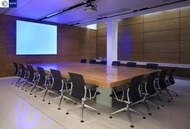
The visibility of your projected image depends on three important features: the brightness of the projector, the projection surface, and the type of lamp in your machine.
Brightness
Your presentation will crash and burn if your projector cannot produce enough light to throw images across a room and onto a screen. Accordingly, the brightness (measured in ANSI lumens) of your LCD projector or DLP projector is a key consideration.
While projectors with fewer than 1,000 lumens may be sufficient for projecting black and white images in dark rooms, they may not have enough firepower to keep multicolored PowerPoint presentations from appearing washed out. When deciding how much brightness your projector should have, keep in mind how dark the rooms will typically be for your presentations and how far your projector will be from the screen.
The basic rule of thumb is that big rooms with more light require brighter projectors.
Brightness ranges from around 1,100 to 4,000 lumens for ultra-lights up to as much as 12,000 for fixed machines. For on-the-road presentations, 1,000 to 2,000 lumens should be fine, while larger conference rooms will need 2,000 to 4,000 lumens. Fixed installation machines in large auditoriums can require 4,000 to 5,000 lumens and up - but be prepared, these machines carry much higher price tags.
Projection surfaces
Screens are much better reflectors than plain walls as they make projected images much more visible. But if you routinely present in locations without screens, you may want to consider a model with more brightness. If you purchase your own screen, you'll have to choose between matte white and gray backgrounds, with additional options available that allow high definition and high contrast presentations.
Perceived color in a projected image is a factor of both the projection surface and projector quality. In general, white surfaces are best suited to natural color tones, making white projection surfaces more common in most business and school presentation environments.
The depth of black tones in a projected image is dependent upon how dark the screen is. Because of this, some presenters and presentation space planners prefer gray screens, which create higher perceived contrast.
They're also reportedly popular in situations with higher levels of ambient light for their ability to maintain a clearer picture in this type of environment when compared to white screens. The tradeoff is that darker backgrounds can throw off color tones. Color problems can sometimes be adjusted through the projector settings but may not be as accurate as they would be on a white background.
Lamp type
Also related to image brightness is lamp type. The most common types are ultra high performance (UHP), and ultra high efficiency (UHE) lamps. Some models still use metal halide as well. Lamp life will be rated for any projector you buy, with average lifespans that range between 1,000 and 5,000 hours. Typically, lamps don't burn out suddenly, but gradually grow dimmer, giving you plenty of warning that it’s time for a replacement.
Although the UHP bulb is the dominant technology used in most projectors today, another lamp has recently emerged on the scene: LED. Claiming to provide a lifespan of up to 20,000 hours, these bulbs are touted for their energy efficiency and longevity. However, the actual lifespan reported by consumers and professional installers is between 6,000 to 8,000 hours, bringing them down into the neighborhood of a UHP bulb.
Further problems have been seen in the LED system, a setup that features a “bulb” that is actually made up of a series of smaller bulbs that function as a whole. Consumers have reported some of the individual bulbs burning out, thereby causing issues with clarity and image.
Finally, as the LED bulb is driven by a DLP engine, there are often issues with color replication, adding to a serious list of issues that find this technology currently struggling to adapt and take hold.
Lamps can be one of the hidden costs of a projector, as they are likely to burn out or break sometime over the life of your machine. Replacement bulbs cost anywhere from $100 to $500, with many falling into the $200 to $300 range. Knowing the replacement cost of the lamp can help you determine your future spending on a given projector.
If you’re comparing two projectors with the same brightness, ask about the wattage of their respective lamps. If there’s a difference, go with the projector that has the lower-powered bulb. The low-watt lamp will last longer, stay cooler, and be more efficient than a bulb with a higher wattage.
Also look for projectors that have an “economy mode.” This setting reduces the power consumption of the projector, cutting brightness by about 20% in exchange for less noise, reduced electricity usage, and longer lamp lifespans. Some models have a bulb lifespan of 3,000 hours in economy mode, as opposed to 2,000 hours in standard mode.
By now, your ideal LCD projector should be somewhat well-defined. But to get the most out of your purchase (and wow them with each presentation), there are a number of additional features to consider.
Digital Projector Features: Resolution, Lenses & Wireless
Resolution refers to the number of dots of light that appear on a screen or a projected image and measures the amount of detail that can be seen in the text and images. Pay attention to the "native" resolution of the digital projector you’re interested in. Although a projector may be able to work with several different resolutions, there is one native resolution at which it works best.
Choosing the right resolution for your projector is as easy as knowing the resolution of your computer. If you plan on upgrading your PC after getting a new projector, it’s best to buy a projector that has a fairly high resolution capable of matching newer laptops.
It’s important to note that your presentation won't come to a screeching halt if the resolution on your notebook and projector differ. Virtually all models can accept higher or lower resolution images than their native resolution via interpolation, which either expands or compresses the pixels that compose the image. However, you can expect lower quality images when using interpolation.
The two most common resolutions right now are SVGA (800 x 600) and XGA (1024 x 768). Higher resolutions like SXGA (1,280 x 1,024) and UXGA (1600 x 1200) will dramatically increase the price you should expect to pay. VGA (640 x 480) is no longer an acceptable resolution, and you would be hard-pressed to find modern projectors that support it.
Digital projector lenses
Zoom lenses are nearly standard on today's projectors. Zoom lenses are standard on today's projectors. A zoom lens allows you to project a larger or smaller image to compensate for the distance between your projector and the screen.
The f-number of the lens (also known as the f-ratio or f-stop) is a measure of how much light gets through the lens to the screen – the smaller the f-number, the more light that will be allowed to pass through the lens. Be sure to check how much an f-number changes at different zoom settings. If the change is minimal, your image will remain uniformly bright regardless of lens position.
Some lenses are now manufactured using lightweight plastics. If weight is not an issue, try to find a machine with an all-glass lens. Glass is the optimal filter for projecting images and will give you a clearer picture. However, glass lenses do make a projector heavier, so pick plastic if you’re on the road a lot and are willing to sacrifice a little on image quality.
Optional lenses including long zoom, ultra-long zoom, and on-axis short fixed are also available through some manufacturers and resellers. If your machine will be called upon to project at different positions, angles, and varying levels of room brightness, you should ask about interchangeable lenses.
Wireless connectivity
Wireless connectivity is currently one of the greatest trends surrounding modern projectors. Providing easy set-up, PC server use, and less clutter, this development has been largely driven by Mac technology and the widespread use of the iPad and similar tablet PCs.
The one current glitch in this system is a slower than normal transfer rate when streaming video. But according to industry insiders, new technology will soon allow video to be streamed at the same rate as a hardwired connection.
Major manufacturers like Hitachi have invested heavily into the development of simplified software that can be downloaded and instantly sync any iPad to a wireless-enabled projector, providing simplified connectivity and premium quality video and data streaming that was previously only available with a wired setup.
And if you don’t have Apple products, don’t lose heart. Apple has recently opened up somewhat, allowing more access to its algorithms that were previously kept proprietary. This is expected to create innovation among competitors, bringing the same technological and cost benefits to the PC market.
We've compiled an extensive range of prices for LCD projectors based on what BuyerZone customers have paid for similar models. These costs can provide a framework for budgeting, show you the ranges you should be negotiating in, and also tip you off on a couple of features that impact cost the most.
Prices for Digital Projectors
Projector prices vary dramatically, ranging from under $400 at the low end to around $12,000 at the high end of common types. (Ultra-high performance projectors for auditoriums can hit $200,000, but that's an extremely specialized arena.)
Keep in mind the market is extremely competitive and prices continue to drop each year. The two features that have the biggest impact on price are resolution and brightness.
If you want to see actual examples of what other BuyerZone users paid for LCD projectors, check out our real-world LCD projector prices article.
You can expect to pay anywhere from $500 to $12,000 for a quality XGA, WXGA, or WUXGA projector. Prices for conference room and fixed-installation machines vary depending on resolution, brightness, and other extras. You can expect to spend around $5,000 for a good system, including the latest technology and any necessary wiring, when you’re outfitting a large auditorium like a church, lecture hall or presentation venue.
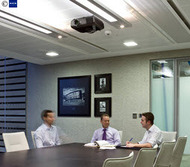
You can find ultra-light SVGA projectors via big box retailers like Best Buy and Costco for $400 or less, but beware. The resolution they provide is far below that of current technology and manufacturers have discontinued new SVGA models. XGA's go between $700 and $2,000
Prices also vary among sellers, so it usually pays to shop around. Often, the same model (with only slight variations in features) may be sold by as many as four different manufacturers under different names. Additionally, some manufacturers may give special pricing to their top sellers, which can translate to larger discounts for you.
To understand your total spending, look into lamp life. Typical lifespans are between 1,500 and 4,000 hours with replacement bulbs running $250 - $600.
Renting/leasing digital projectors
If the idea of a $5,000 hole in your budget keeps you from picking out the perfect addition to your conference room, there are other options. Unfortunately, unless your needs are brief or only sporadic, you’ll find yourself working up to the purchase price of a new machine rather quickly.
For special presentations or out-of-town seminars you don’t want to haul a bunch of equipment to, high-end digital projectors can be rented for a specific day or period of time for as little as $95. Plus, they can even be ordered online and shipped straight to your location.
For longer terms, it’s fairly common to rent or lease digital projectors for a weekly or monthly fee. Most common leases start around $100 per day (often including shipping both ways) and offer discounts for multiple days as well as weekly and monthly rental periods, running anywhere from $150 to $400 per week up to $1,000+ for monthly rentals. The more advanced the model, the more you can expect to pay.
One thing to be aware of: read the contract carefully to avoid lowball offers that end up costing you more in the long run. Overall, the price will depend on the type of projector you rent. But shipping and security deposit are two items that can often double the total cost of rental. There are also numerous variations in projector capabilities and construction, so make sure the contract specifies exactly the right projector for your needs.
Refurbished projectors
You can often save money by purchasing used or refurbished equipment, including standard XGA models for as low as $400 and higher-end WXGA units for around $1,700. But "buyer beware" is in full effect. Unless you’re tech-savvy and confident you can fix the problems that may arise, it might be best to avoid the tempting offers you’re sure to find on sites like eBay and Amazon.
Instead, opt for a quality seller that can provide support and repairs when needed - but realize that sellers vary widely in their ability to deliver top-quality customer support for used equipment. Whether you look locally or online, check out policies regarding returns, refunds, upgrades, warranty and non-warranty maintenance service, loaners during service, and so forth before choosing a seller for a used projector.
Projector warranties and service
Warranties on digital projectors range from 1 to 3 years on parts and labor depending on the manufacturer. When offered, standard bulb coverage tends to be 90 days.
If you travel frequently, check into warranties that cover 24-hour projector replacement in the event that shipping the projector back to the manufacturer for repair will take too long. If you’re considering a projector with a warranty that does not offer overnight replacements, it doesn’t necessarily mean you’re out of luck. Some manufacturers work informally with their resellers to offer such services. Talk to potential sellers to find out if they offer such a service.
When purchasing a projector, make sure to inquire about return policies. Some discount vendors simply do not accept returns - others may charge surprisingly high restocking fees. While you're not likely to need to return a new projector, understanding the policies can help you avoid a nasty surprise.
LCD Projector Buying Tips
Here are some more tips to help you pick the right LCD or DLP projector for your needs. Much like air conditioning or power steering in a new car, these extras may help make your projector more
Inputs
The projector you buy is not an island unto itself. You'll probably be hooking up a laptop or two, maybe a mouse, as well as a DVD or audio player to boot. Be sure to check out your input and output options and buy the projector that can meet your connectivity needs.
Remote control
While the remote that comes with your projector may not be a life-or-death feature, it is important. The ideal remote lets you control all the features you use during a presentation without making it too complex. With your remote, you should be able to advance slides, control audio volume, switch between input sources, laser point, and zoom. In addition, most come standard with remote mousing capabilities and screen markup that allows you to digitally draw on a screen to highlight areas of interest.
Infrared remotes work just like TV remotes - they require a direct line of sight between the remote and the unit. Radio frequency (RF) remotes that do not require line of sight are becoming more common and can be useful if you have employees who like to pace around the room while giving a presentation.
Picture Adjustment
You should be able to set the contrast, brightness, and sharpness for a presentation. "Keystone" correction is useful if you have to set up the projector at an angle - it allows you to square up the borders of the picture and remove distortion. Automatic keystone correction takes care of the adjustment for you. Better models allow you to save different settings for each input source.
Projection options
For permanent installations, you may want to look for a model that can be adjusted for rear projection or inverse projection to make the equipment less intrusive. Rear projection flips the image so the projector can be positioned behind the screen, while inverse projection turns the image upside down for projectors that are mounted on a ceiling.
Memory
Projectors with memory capabilities allow you to run your presentation without a computer: you simply insert a CD or PCMCIA card and get started. This can result in substantially less luggage, but eliminates the option to make changes to the presentation on the fly. Also be aware that PCMCIA cards can't handle anything beyond still images – in particular, they can't display PowerPoint slide transitions, animations, MPEG movies, or sounds.
Network connectivity
Another option for presenting with a computer is a built-in network connection that lets you pull your slide deck directly from a network. Look for wired and/or wireless LAN support.
Audio amplifier and speakers
Most projectors have a built-in speaker but the quality can vary widely. If sound plays a big role in your presentations, it's easy and economical to add a lightweight sound system for use with large groups. Add-on speakers almost always have sound quality way beyond anything built into a projector.